Supabase
Learn how to set up your app with Supabase as the database provider.
We'll utilize Supabase as the database provider. However, please note that Supabase's authentication feature won't be used, as we rely on Auth.js for authentication. Auth.js will handle user authentication and store user data directly in your database.
Account
If you don't already have one, you can easily create a free account at supabase.io.
Project
If you don't have a project, press click on New Project.
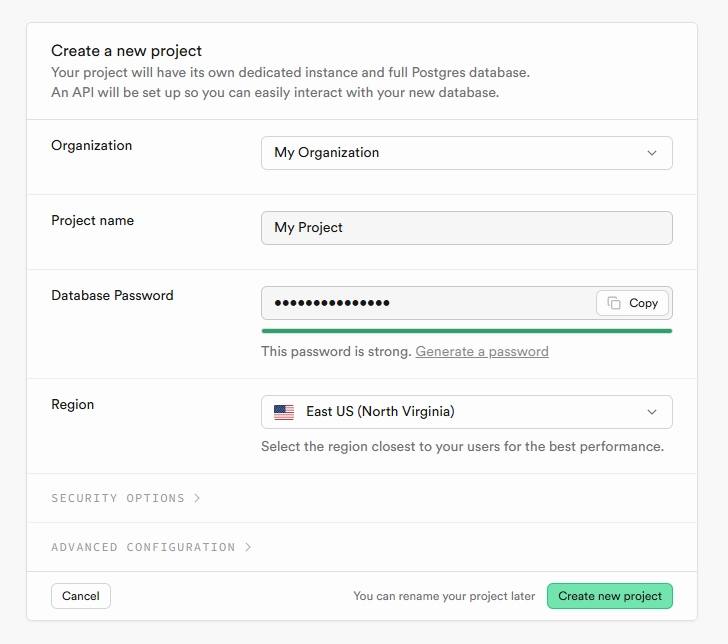
Good to know: Make sure your application and database are physically close. If you use Vercel and Supabase make sure they are in the same AWS region. For example
- Vercel (D.C.) and Supabase (Virgina): Both are in the us-east-1 region which results in a fast application.
- Vercel (D.C.) and Supabase (Ohio): You are dealing with two different AWS regions, the app is up to x3-12 slower!
Connection strings
In the Supabase dashboard, click the Connect button in the top row.
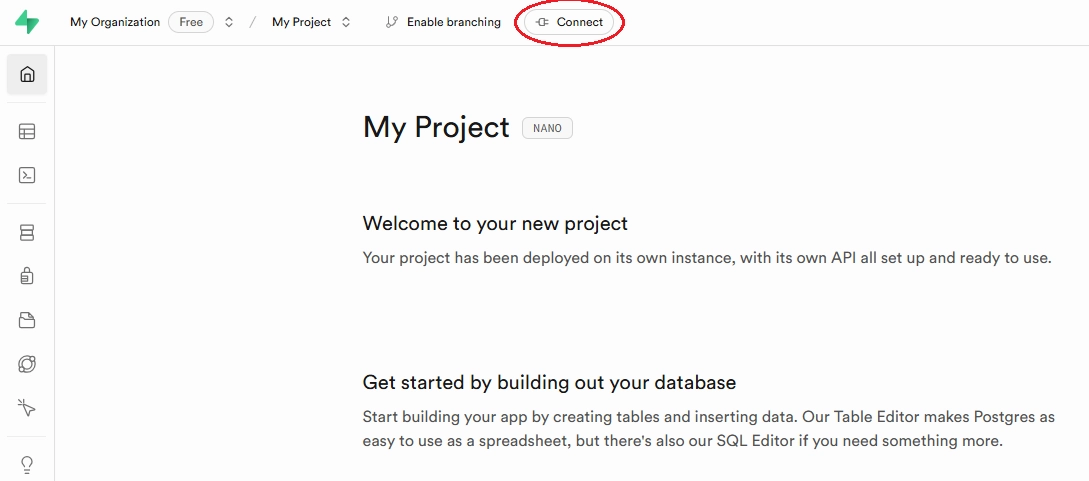
Select the ORM tab and Prisma as the tool.
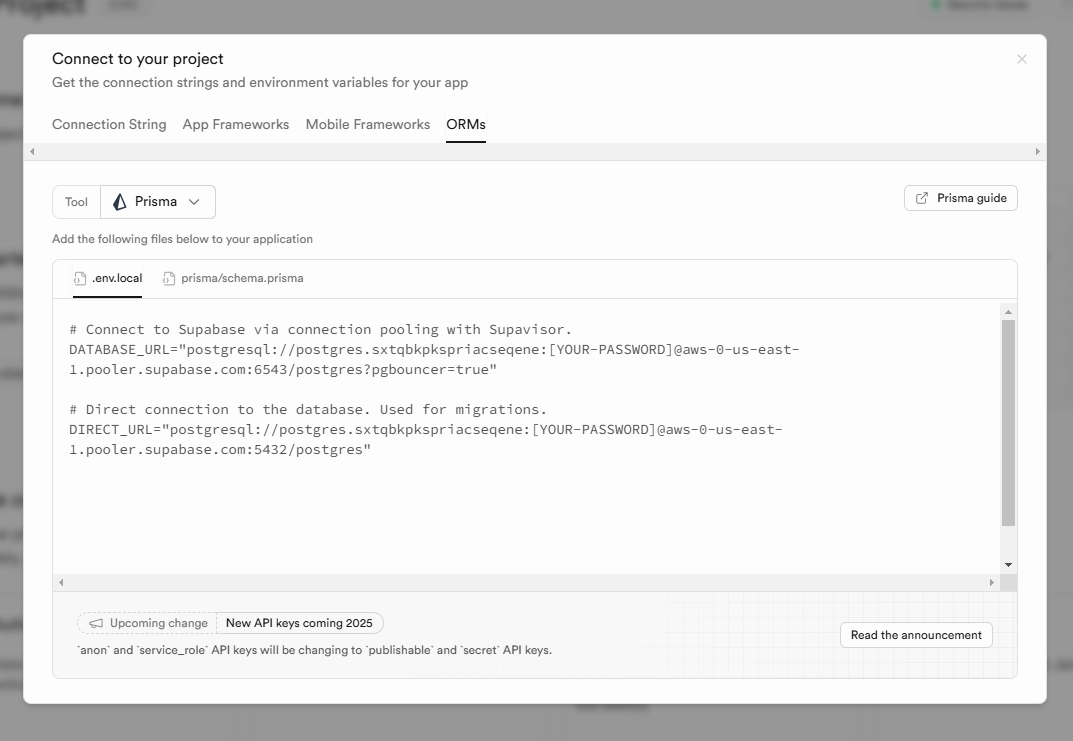
We will need both the DATABASE_URL and the DIRECT_URL. Open the apps/dashboard/.env and packages/database/.env files and set the environment variables as follows:
DATABASE_URL=postgres://postgres.[YOUR-PROJECT-REF]:[YOUR-PASSWORD]@aws-0-[AWS-REGION].pooler.supabase.com:6543/postgres?pgbouncer=true
DIRECT_URL=postgres://postgres.[YOUR-PROJECT-REF]:[YOUR-PASSWORD]@aws-0-[AWS-REGION].pooler.supabase.com:5432/postgres
Make sure to replace the placeholders with your own values.
Next we need to add the DIRECT_URL to the packages/database/prisma/schema.prisma file. Add the following line almost at the top of the file:
datasource db {
  provider  = "postgresql"
  url       = env("DATABASE_URL")
  // [\!code highlight:1]
  directUrl = env("DIRECT_URL")
}
Migration
To push the database schema to Supabase, run the following command in the project root:
pnpm --filter database migrateAfter the migrations are run, make sure to enable RLS for all created tables in the Supabase dashboard.