On this page13 sections
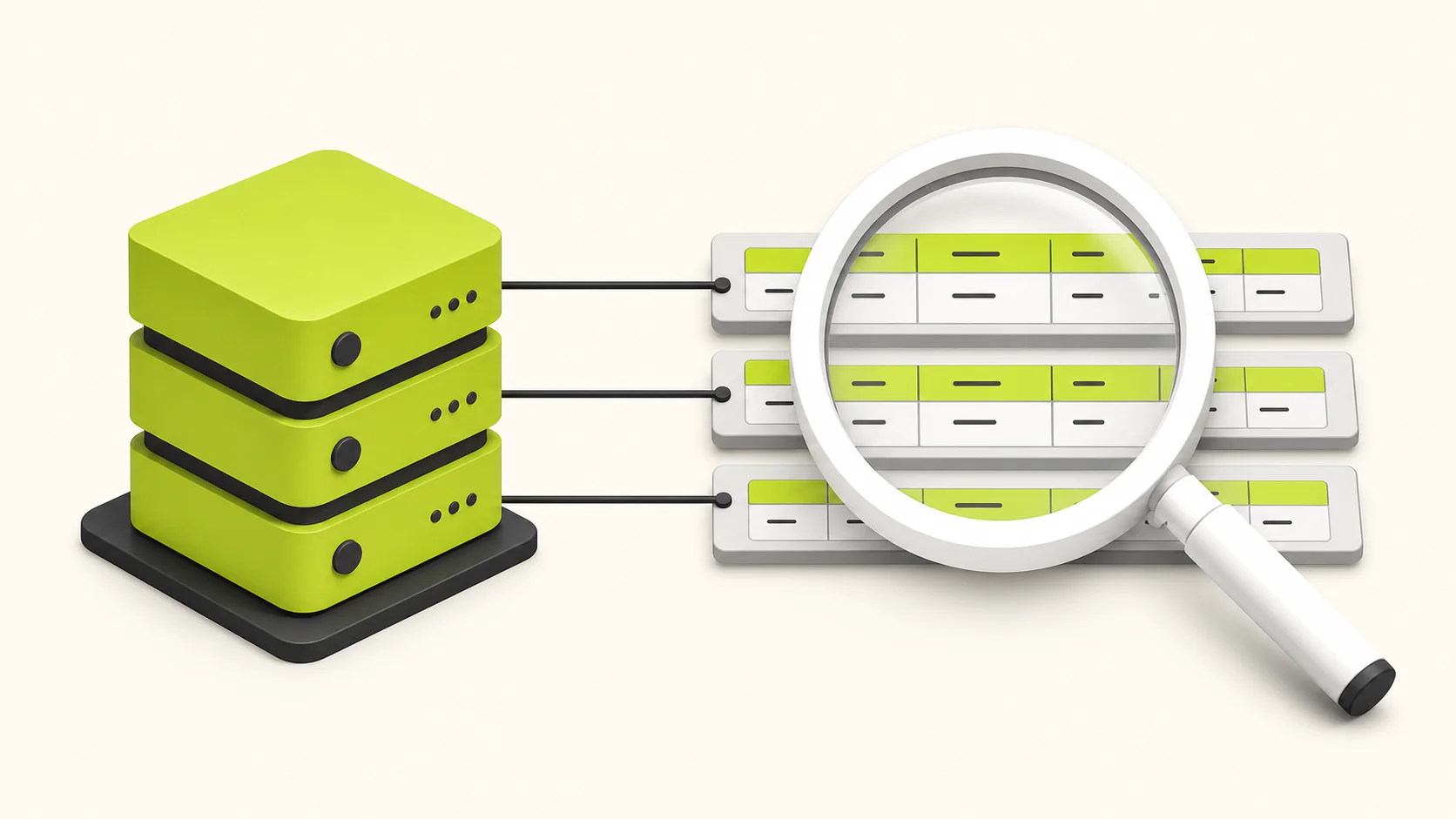
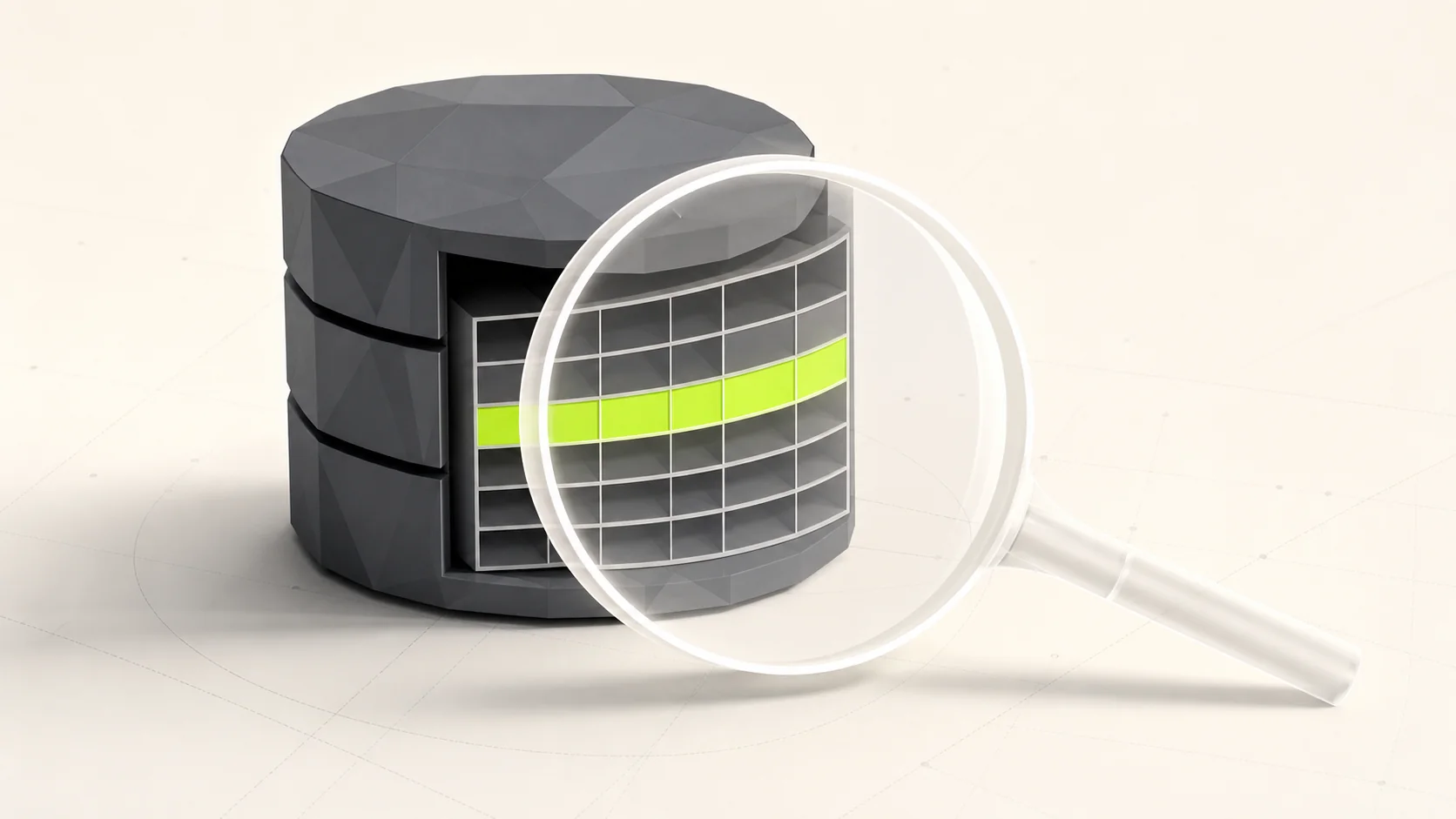
Prisma Studio is a visual database browser that ships with Prisma ORM. It provides an intuitive GUI for exploring your data, understanding relationships, and making quick edits—all without writing SQL or leaving your development environment.
What is Prisma Studio?
Prisma Studio is a free, built-in tool that comes with every Prisma installation. Unlike standalone database clients, it:
- Understands your schema — Reads your
schema.prismafile directly - Shows relationships visually — Navigate between related records easily
- Runs locally — Opens in your browser at
http://localhost:5555 - Zero configuration — Works immediately after Prisma setup
Quick Start
If you have Prisma set up, launching Studio takes one command:
npx prisma studioThis opens Prisma Studio in your browser. That's it—no configuration needed.
Setting Up Prisma Studio
Prerequisites
- Node.js 16.13 or higher
- Prisma installed in your project
- A valid
schema.prismafile with database connection
Installation
If you're starting fresh:
npm install prisma --save-dev
npm install @prisma/client
Initialize Prisma:
npx prisma initConfiguration
Your schema.prisma should have a datasource configured:
generator client {
  provider = "prisma-client-js"
}

datasource db {
  provider = "postgresql" // or "mysql" | "sqlite"
  url      = env("DATABASE_URL")
}
Set your DATABASE_URL in .env:
DATABASE_URL="postgresql://user:password@localhost:5432/mydb?schema=public"Adding an npm Script
Add a convenient script to your package.json:
{
  "scripts": {
    "db:studio": "prisma studio"
  }
}
Now launch with:
npm run db:studioPrisma Studio Features
1. Model Browser
The left sidebar shows all your Prisma models. Each model displays:
- Record count — Total rows in the table
- Fields — Column names and types
- Relations — Connected models
Click any model to view its data.
2. Data Table View
The main panel shows records in a spreadsheet-like interface:
- Pagination — Navigate through large datasets (25, 50, 100 rows per page)
- Column sorting — Click headers to sort ascending/descending
- Column visibility — Hide/show columns as needed
- Resizable columns — Drag borders to adjust width
3. Filtering and Search
Use the filter bar to narrow down records:
// Filter by exact value
email = "user@example.com"

// Filter by partial match
name contains "John"

// Filter by comparison
createdAt > 2024-01-01

// Multiple conditions
status = "active" AND role = "admin"
Supported operators:
=(equals)!=(not equals)>,<,>=,<=(comparisons)contains(partial string match)startsWith,endsWithin(list of values)
4. Inline Data Editing
Edit records directly in the table:
- Click any cell to select it
- Double-click to enter edit mode
- Modify the value
- Press Enter to save, Escape to cancel
Changes are saved immediately to the database.
5. Creating New Records
Click the Add record button to insert new data:
- A form appears with all model fields
- Required fields are marked with asterisks
- Default values are pre-filled
- Relations can be selected from dropdowns
- Click Save to insert
6. Deleting Records
Select records using checkboxes, then click Delete selected. You'll be asked to confirm before deletion.
Warning: Deletes cascade according to your schema relations. Review your onDelete settings carefully.
7. Relation Navigation
One of Studio's best features is exploring relations:
- One-to-one — Click the related record to view it
- One-to-many — See a count and click to expand
- Many-to-many — Browse junction tables seamlessly
For example, if a User has many Posts, click the posts count to see all related posts, then click any post to view its details.
Real-World Schema Example
Here's a typical SaaS schema in Prisma (what you'd see in Studio):
model User {
  id            String    @id @default(uuid()) @db.Uuid
  name          String
  email         String    @unique
  emailVerified Boolean   @default(false) @map("email_verified")
  image         String?
  role          UserRole  @default(user)
  createdAt     DateTime  @default(now()) @map("created_at")
  updatedAt     DateTime  @updatedAt @map("updated_at")

  accounts      Account[]
  memberships   Member[]

  @@map("user")
}

model Organization {
  id        String   @id @default(uuid()) @db.Uuid
  name      String
  slug      String   @unique
  logo      String?
  createdAt DateTime @default(now()) @map("created_at")
  updatedAt DateTime @updatedAt @map("updated_at")

  members       Member[]
  subscriptions Subscription[]

  @@map("organization")
}

model Member {
  id             String     @id @default(uuid()) @db.Uuid
  organizationId String     @map("organization_id") @db.Uuid
  userId         String     @map("user_id") @db.Uuid
  role           MemberRole @default(member)
  createdAt      DateTime   @default(now()) @map("created_at")

  organization Organization @relation(fields: [organizationId], references: [id], onDelete: Cascade)
  user         User         @relation(fields: [userId], references: [id], onDelete: Cascade)

  @@unique([organizationId, userId])
  @@map("member")
}

enum UserRole {
  user
  admin
}

enum MemberRole {
  owner
  admin
  member
}
In Prisma Studio, you'll see User, Organization, and Member models with clickable relation counts.
Prisma Studio vs Other Database GUIs
| Feature | Prisma Studio | pgAdmin | TablePlus | DBeaver |
|---|---|---|---|---|
| Price | Free | Free | $99 | Free |
| Schema-aware | ✅ Yes | ❌ No | ❌ No | ❌ No |
| Relation navigation | ✅ Yes | ❌ No | Limited | Limited |
| Zero config | ✅ Yes | ❌ No | ❌ No | ❌ No |
| Multi-database | ✅ Yes | PostgreSQL only | ✅ Yes | ✅ Yes |
| Raw SQL | ❌ No | ✅ Yes | ✅ Yes | ✅ Yes |
| ERD diagrams | ❌ No | ✅ Yes | ❌ No | ✅ Yes |
| Query builder | ❌ No | ✅ Yes | ✅ Yes | ✅ Yes |
Best for: Quick data exploration and editing during development. Pair with a full-featured tool for complex queries.
Common Use Cases
1. Debugging User Issues
When a customer reports a problem:
npm run db:studioFilter the User model by email, then navigate through their related records to understand the issue.
2. Manual Data Seeding
During development, quickly add test data:
- Open the target model
- Click Add record
- Fill in values
- Repeat for related records
3. Verifying Migrations
After running npx prisma migrate dev:
- Open Studio
- Check new models appear
- Verify field types are correct
- Confirm indexes and constraints
4. Customer Support
Quickly look up customer data, verify subscription status, or check order history without writing queries.
Advanced Usage
Custom Port
Run Studio on a different port:
npx prisma studio --port 5556Browser Selection
Open in a specific browser:
npx prisma studio --browser firefoxHeadless Mode (No Browser)
Run without auto-opening a browser:
npx prisma studio --browser noneThen manually navigate to http://localhost:5555.
Multiple Schemas
If using Prisma's multi-schema feature:
datasource db {
  provider = "postgresql"
  url      = env("DATABASE_URL")
  schemas  = ["public", "auth", "billing"]
}
Studio will show models from all configured schemas.
Troubleshooting
"Error: P1001: Can't reach database server"
- Verify your database is running
- Check
DATABASE_URLin.env - Ensure network connectivity (firewall, VPN)
# Test connection
npx prisma db pull
"No models found"
Your schema.prisma might be empty or invalid:
# Validate schema
npx prisma validate

# Pull schema from existing database
npx prisma db pull
Studio Shows Stale Data
Studio caches some data. Force refresh with:
- Close the Studio browser tab
- Stop the Studio process (Ctrl+C)
- Restart with
npx prisma studio
Relations Not Showing
Ensure your schema defines relations properly:
model Post {
  id       String @id @default(uuid())
  authorId String @map("author_id")

  // This relation MUST be defined
  author User @relation(fields: [authorId], references: [id])
}

model User {
  id    String @id @default(uuid())

  // Back-relation
  posts Post[]
}
Best Practices
-
Development only — Don't use Studio on production databases. Accidental edits can cause data loss.
-
Use migrations for schema changes — Never modify your schema through Studio; use
prisma migrateinstead. -
Be careful with cascades — Deleting a record may cascade to related tables. Always check your
onDeleterules. -
Combine with Prisma Client — For complex operations, write proper Prisma Client code. Studio is for quick exploration, not complex workflows.
-
Commit your schema — Always commit
schema.prismachanges so your team sees the same structure.
Prisma Studio vs Drizzle Studio
If you're choosing between Prisma and Drizzle for a new project:
| Aspect | Prisma Studio | Drizzle Studio |
|---|---|---|
| Schema source | schema.prisma file | TypeScript schema files |
| Relation navigation | Excellent | Good |
| Type inference | Generated types | Native TypeScript |
| Performance | Good | Slightly better |
| Learning curve | Lower | Higher |
Both tools serve similar purposes. Choose based on your ORM preference.
Conclusion
Prisma Studio removes friction from database exploration during development. Its schema-aware interface and relation navigation make it significantly faster than generic database tools for day-to-day development tasks.
For a production-ready Next.js starter kit with Prisma already configured (including Studio), check out Achromatic's Prisma starter kit.